前の例で使用した ItemTemplate は、連結を使用して Employee クラスのプロパティをビジュアル要素として表示しますが、ビジュアル要素を C1OrgChart のプロパティに連結することもできます。
このような例として、CheckBox.IsChecked プロパティを C1OrgChart の IsCollapsed プロパティに連結するとたいへん便利です。これにより、TreeView のように動作する折りたたみ可能な C1OrgChart を作成できます。
たとえば、次は、C1OrgChart の ItemTemplate プロパティに割り当てたデータテンプレートです。
|
コードのコピー
|
|
|---|---|
<orgchart:C1OrgChart.ItemTemplate>
   <DataTemplate>
   <!-- 外側境界線 -->
     <Border
Background="WhiteSmoke" BorderBrush="Black"
BorderThickness="1 1 2 2" CornerRadius="6"
MaxWidth="200"
<StackPanel Orientation="Vertical">
        <!-- 項目ヘッダー -->
        <Border CornerRadius="6 6 0 0" Background="Black" >
            <StackPanel Orientation="Horizontal">
           <!-- CheckBox を C1OrgChart の IsCollapsed プロパティに連結します -->
            <CheckBox Margin="4 0" Checked="CheckBox_Checked" Unchecked="CheckBox_Unchecked"/>
               <!-- 項目ヘッダー:人の名前 -->
                <TextBlock Text="{Binding Name}" FontWeight="Bold" FontSize="14" Foreground="WhiteSmoke" Padding="4 0 0 0" />
            </StackPanel>
          </Border>
          <!-- 本体:人の詳細 -->
           <TextBlock Text="{Binding Notes}" Padding="6 0" FontSize="9.5" TextWrapping="Wrap" />
            <TextBlock Text="{Binding Position}" Padding="6 0" FontSize="12" FontStyle="Italic" HorizontalAlignment="Right" />
        </StackPanel>
      </Border>
    </DataTemplate>
  </orgchart:C1OrgChart.ItemTemplate>
|
|
この変更により、組織図は次のようになります。
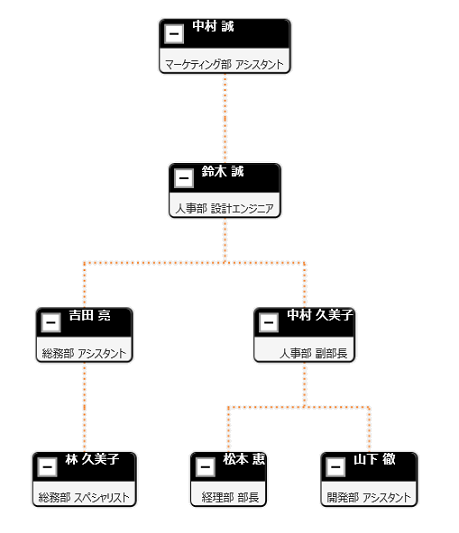
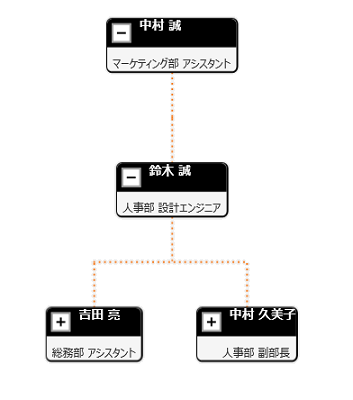
Sarah Williams ノードと Larry Doe ノードのチェックボックスをクリックすると、ブランチが折りたたまれ、コンパクトに表示されます。
関連トピック