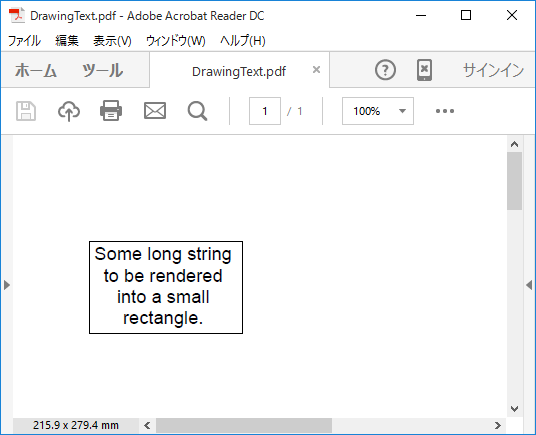
PDF for UWP ドキュメントにはテキストを簡単に追加できます。すべての作業が C1PdfDocument.DrawString メソッドによって処理されます。
C1PdfDocument.DrawString は、指定されたフォントとブラシを使用して、指定された位置に指定された文字列を描画します。次に例を示します。
| Visual Basic |
コードのコピー
|
|---|---|
pdf.DrawString("Hello World!", font, Colors.Black, rect)
|
|
| C# |
コードのコピー
|
|---|---|
pdf.DrawString("Hello World!", font, Colors.Black, rect);
|
|
デフォルトでは、C1PdfDocument.DrawString はテキストを四角形の左上に配置し、四角形内で文字列を折り返します。出力を四角形にクリップすることはありません。C1PdfDocument.DrawString の呼び出しで StringFormat パラメータを指定すると、これらのオプションのすべてを変更できます。StringFormat には、水平方向の配置(Alignment)、垂直方向の配置(LineAligmnent)、および折り返しとクリッピングを制御するフラグ(FormatFlags)を指定するためのメンバがあります。
たとえば、次のコードは、StringFormat オブジェクトを作成し、垂直方向にも水平方向にもテキストを四角形の中心に揃えます。
| Visual Basic |
コードのコピー
|
|---|---|
Dim font As New Font("Arial", 12) Dim rect As New Rect(72, 72, 100, 50) Dim text As String = "Some long string to be rendered into a small rectangle. " text = Convert.ToString(Convert.ToString(Convert.ToString(Convert.ToString(text & text) & text) & text) & text) & text ' 文字列を中央揃えにします。 Dim sf As New StringFormat() sf.Alignment = HorizontalAlignment.Center sf.LineAlignment = VerticalAlignment.Center pdf.DrawString(text, font, Windows.UI.Colors.Black, rect, sf) pdf.DrawRectangle(Windows.UI.Colors.Gray, rect) |
|
| C# |
コードのコピー
|
|---|---|
Font font = new Font("Arial", 12); Rect rect = new Rect(72, 72, 100, 50); string text = "Some long string to be rendered into a small rectangle. "; text = text + text + text + text + text + text; // 文字列を中央揃えにします。 StringFormat sf = new StringFormat(); sf.Alignment = HorizontalAlignment.Center; sf.LineAlignment = VerticalAlignment.Center; pdf.DrawString(text, font, Windows.UI.Colors.Black, rect, sf); pdf.DrawRectangle(Windows.UI.Colors.Gray, rect); |
|
次のような PDF ドキュメントが出力されます。