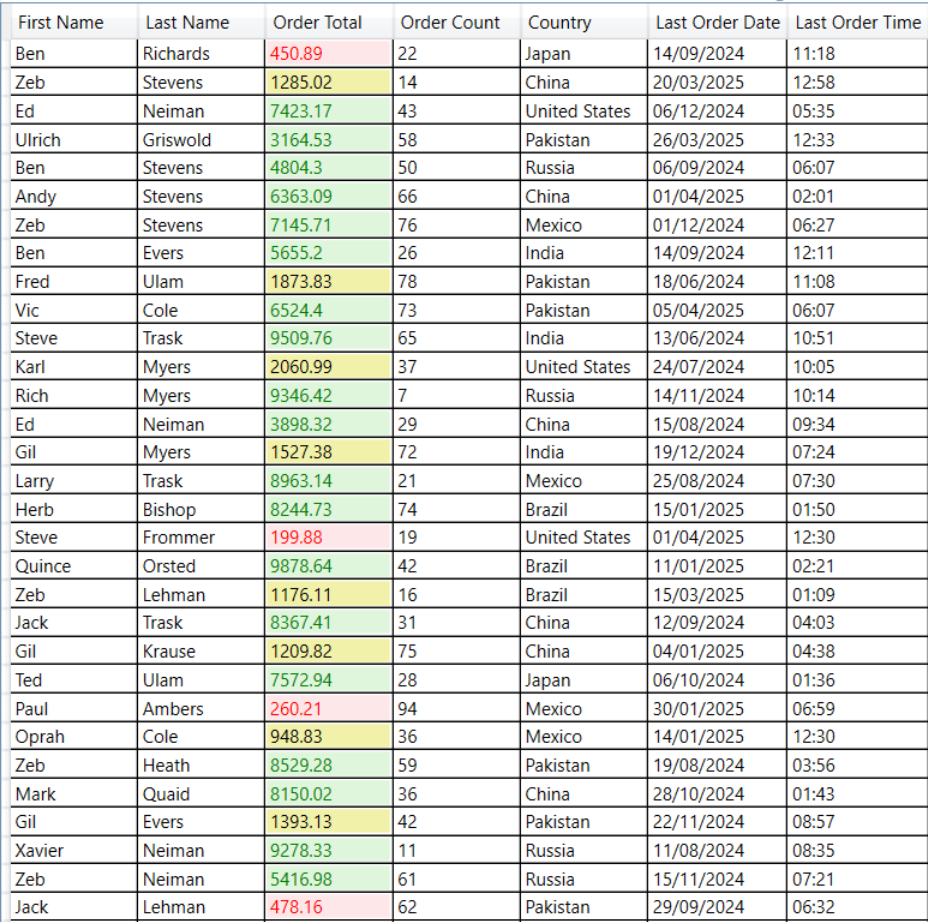
This is a step-by-step guide for applying conditional formatting to Microsoft DataGrid by integrating the Rules Manager control.
Set Up Application
- Create a WPF application
- Drag and drop DataGrid and RulesManager on the form
- Bind the data using ItemsSource property
Define Value Converters
Use the following code to implement two value converters.
- CountryConverter
-
DataGridValuetoBrushConverter
XAML コードのコピー<local:CountryConverter x:Key="CountryConverter"/> <local:DataGridValueToBrushConverter x:Key="valueConverter" />
The CountryConverter displays a readable country name instead of a numeric ID whereas the DataGridValuetoBrushConverter converts a data value into a brush for cell styling.
Integrate Rules Manager
Use the following code to integrate RulesManager with C1DataGrid and add/edit the rules.
| XAML |
コードのコピー
|
|---|---|
<c1:C1RulesEngine x:Key="rulesEngine" RulesChanged="C1RulesEngine_RulesChanged"> <c1:RulesEngineSegmentsRule Ranges="[OrderTotal]"> <c1:RulesEngineSegment Value="500.00"> <c1:RulesEngineStyle Background="#FFFDE7E9" Foreground="Red"/> </c1:RulesEngineSegment> <c1:RulesEngineSegment Value="3000.00"> <c1:RulesEngineStyle Background="#FFF2F1A9" Foreground="Black"/> </c1:RulesEngineSegment> <c1:RulesEngineSegment> <c1:RulesEngineStyle Background="#FFDFF6DD" Foreground="Green"/> </c1:RulesEngineSegment> </c1:RulesEngineSegmentsRule> </c1:C1RulesEngine> |
|
Use the following code to apply cell styling based on rules applied.
| XAML |
コードのコピー
|
|---|---|
        <DataGrid x:Name="grid" AutoGenerateColumns="False" Grid.Column="0" SelectionChanged="grid_SelectionChanged">
            <DataGrid.Columns>
                <DataGridTextColumn Binding="{Binding FirstName}" Header="First Name"/>
                <DataGridTextColumn Binding="{Binding LastName}" Header="Last Name"/>
                <DataGridTextColumn Binding="{Binding OrderTotal}" Header="Order Total"/>
                <DataGridTextColumn Binding="{Binding OrderCount}" Header="Order Count"/>
                <DataGridTextColumn Binding="{Binding CountryId, Converter={StaticResource CountryConverter}}" Header="Country"/>
                <DataGridTextColumn Binding="{Binding LastOrderDate, StringFormat={}\{0:dd/MM/yyyy\}}" Header="Last Order Date"/>
                <DataGridTextColumn Binding="{Binding LastOrderDate, StringFormat={}\{0:hh:mm\}}" Header="Last Order Time"/>
            </DataGrid.Columns>
            <DataGrid.CellStyle>
                <Style TargetType="DataGridCell" BasedOn="{StaticResource {x:Type DataGridCell}}">
                    <Setter Property="Background">
                        <Setter.Value>
                            <MultiBinding Converter="{StaticResource valueConverter}" ConverterParameter="Background">
                                <Binding RelativeSource="{RelativeSource Self}" />
                                <Binding RelativeSource="{RelativeSource Mode=FindAncestor, AncestorType=DataGrid}" />
                                <Binding Source="{StaticResource rulesEngine}" />
                            </MultiBinding>
                        </Setter.Value>
                    </Setter>
                    <Setter Property="Foreground">
                        <Setter.Value>
                            <MultiBinding Converter="{StaticResource valueConverter}" ConverterParameter="Foreground">
                                <Binding RelativeSource="{RelativeSource Self}" />
                                <Binding RelativeSource="{RelativeSource Mode=FindAncestor, AncestorType=DataGrid}" />
                                <Binding Source="{StaticResource rulesEngine}" />
                            </MultiBinding>
                        </Setter.Value>
                    </Setter>
                </Style>
            </DataGrid.CellStyle>
        </DataGrid>
|
|
Use the following code to add a collapsible panel using C1Expander to show the Rules Manager control.
| XAML |
コードのコピー
|
|---|---|
<c1:C1Expander Header="RulesManager" ExpandDirection="Left" ExpandIconAlignment="Left" HorizontalContentAlignment="Right" BorderThickness="0" Grid.Column="1"> <c1:C1RulesManager x:Name="rulesManager" Engine="{StaticResource rulesEngine}" Width="400"/> </c1:C1Expander> |
|